
Changes to a Smart Link stay in a draft until you publish them. This gives you a chance to check the route before new visitors use it.
Check the draft
Section titled “Check the draft”Select Test route in the Smart Link editor. Choose an example visitor and inspect the selected Flow, destination, and explanation. Try at least one example that should match a specific Flow and one that should reach the Default Flow.
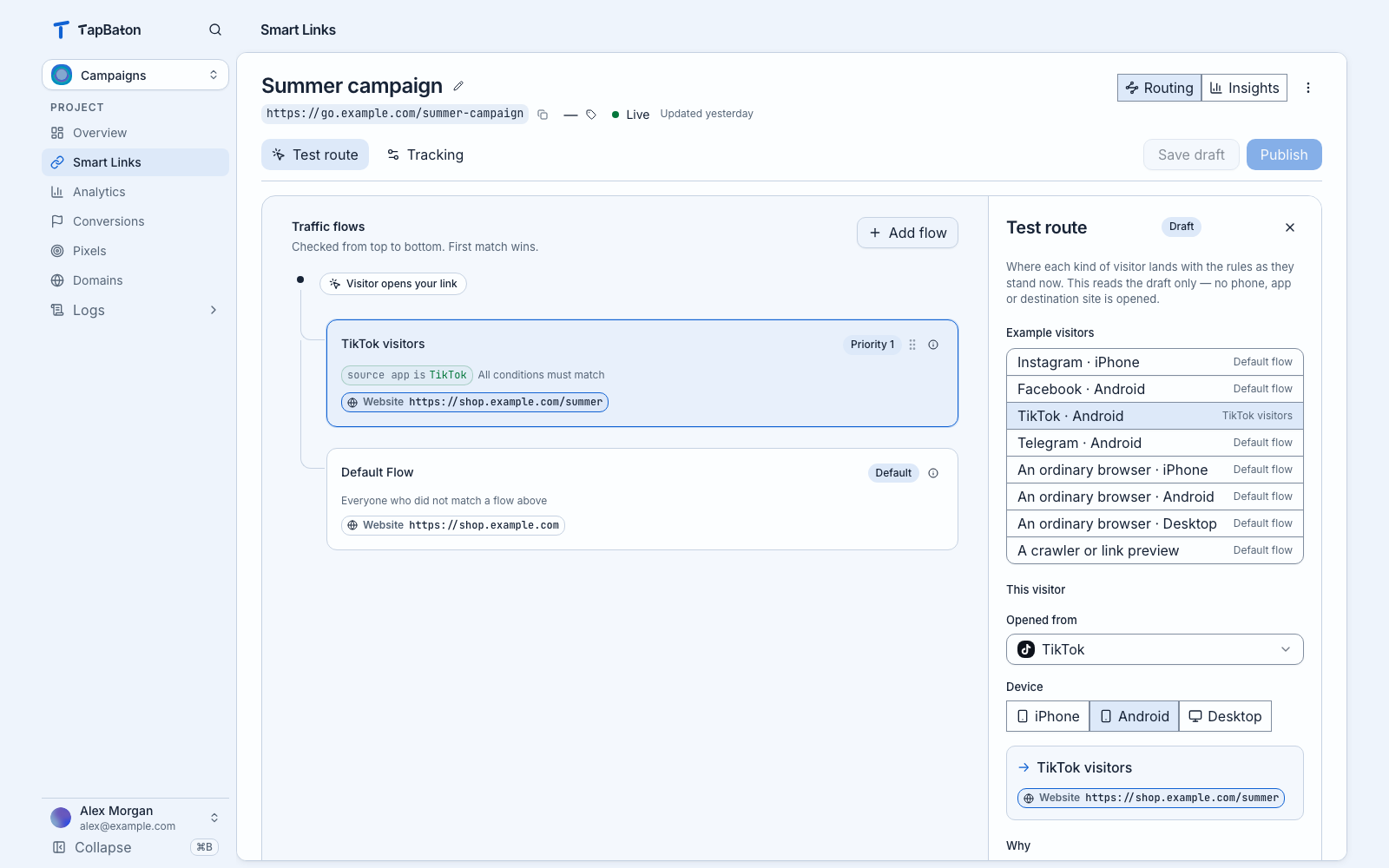
The example panel reads the draft. It does not open the destination.
If the preview is wrong, check the Flow order and filters. A Flow needs every one of its filters to match. A missing or unknown signal cannot satisfy a filter that requires it.
The preview does not visit the destination. It also does not test a real social app, phone, or browser. Test the handoff on a device after you publish.
Save, then publish
Section titled “Save, then publish”- Select Save draft if the editor shows unsaved changes.
- Select Publish.
- Review any issues the editor shows. Fix the affected Flow and try again.
- Confirm publication.
New visitors use the published version. A saved draft remains private to your team. After another edit, the link may show Draft ahead: you have changes that visitors are not using yet. Publish again when they are ready.
Check a published link
Section titled “Check a published link”Copy the public URL and open it yourself. If you changed a route for an existing campaign, check the published version and make a real visit before judging the result. Versions shows the history of published setups; use it to see which setup was live at a given point.
A public URL on a development address is still the link TapBaton shows for the current setup. Connect a domain when your workspace supports one.