A Smart Link is one public address with rules for where visitors go. It belongs to a Project, so your campaigns and their results can stay separate from other Projects.
The parts you will use
Section titled “The parts you will use”| Part | What it means |
|---|---|
| Public URL | The address you put in a campaign. |
| Flow | A route for a group of visitors. |
| Filter | A condition that decides whether a Flow fits a visitor. |
| Destination | The website or app the visitor should open. |
| Default Flow | The route for visitors who did not match an earlier Flow. |
| Draft | Changes your team can review before they affect visitors. |
| Published version | The route new visitors currently use. |
You can start with only the Default Flow. Add more Flows when you have a clear reason to send a group somewhere else.
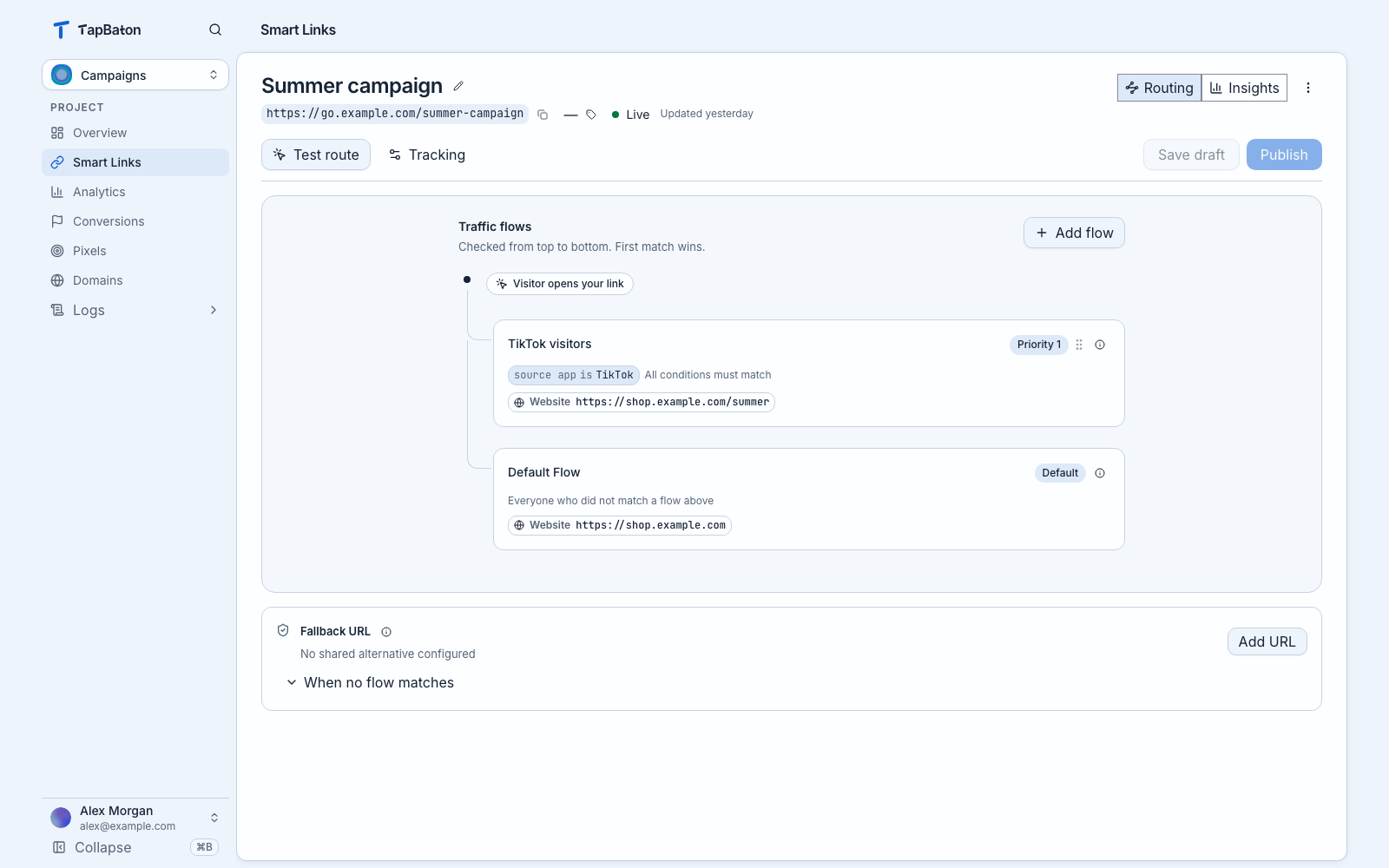
Example link and destinations. TapBaton checks the top Flow before the Default Flow.
A simple example
Section titled “A simple example”Suppose an Instagram campaign needs a page designed for phone screens, while all other visitors should see your main offer. Put an Instagram Flow above the Default Flow. Give each Flow its destination. TapBaton checks the Instagram Flow first; the Default Flow catches the rest.
Learn how Flows are checked · Preview and publish a change
What you can change later
Section titled “What you can change later”The editor lets you rename a Smart Link, edit its Flows, test a draft, and publish a new version. You can also clone a link to use its setup as a starting point for another campaign. The Versions view shows publication history.
To review one link’s results, switch from Routing to Insights at the top of its editor. To see where it was pasted into chats, open Shares. For a broader view across links, use Analytics.